Alert Integrations
Alert integrations define how Kadeck delivers notifications to your organization's communication and incident management systems. Administrators configure integrations through the Kadeck Administration interface, and each alert can be configured to use one or more integrations for notification delivery.
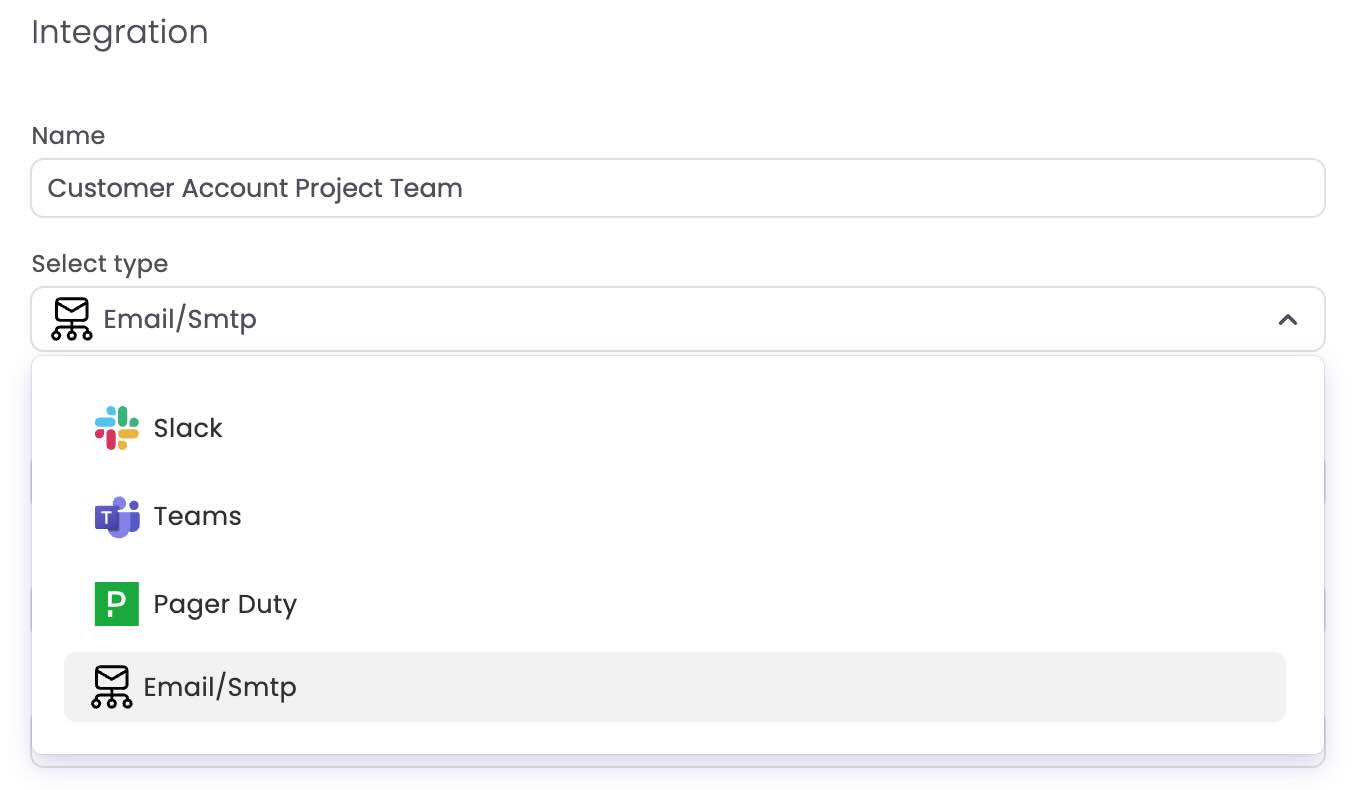
Supported Integration Types
Kadeck supports the following notification integration types:
- Slack - Webhook-based integration
- Microsoft Teams - Webhook-based integration
- PagerDuty - Webhook-based integration
- Email (SMTP) - SMTP server integration
Prerequisites
Configuring alert integrations requires Kadeck administrator privileges.
Webhook-Based Integrations
Slack, Microsoft Teams, and PagerDuty integrations are configured using webhook URLs. These integrations require:
- Webhook URL - The incoming webhook URL provided by the respective service
Configuration
- Navigate to
Administration → Alerts → Integrations - Select the integration type (Slack, Microsoft Teams, or PagerDuty)
- Provide a name for the integration configuration
- Enter the webhook URL
- Save the configuration
The webhook URL can be obtained from:
- Slack: Create an incoming webhook in your Slack workspace's app settings
- Microsoft Teams: Create an incoming webhook connector in your Teams channel (see info box)
- PagerDuty: Create a webhook integration in your PagerDuty service
Microsoft Teams Update (Workflow)
Microsoft Teams does no longer support messaging to webhooks directly. Instead, a workflow needs to be created that accepts messages through a webhook. This guide by Microsoft explains how to configure a workflow.
Email (SMTP) Integrations
Email integrations require SMTP server configuration with the following parameters:
- Username - SMTP authentication username
- Password - SMTP authentication password
- Recipient Address - Email address(es) to receive alert notifications
- Sender Address - Email address used as the sender for alert notifications
- Host - SMTP server hostname or IP address
- Port - SMTP server port number
Configuration
- Navigate to
Administration → Alerts → Integrations - Select Email (SMTP) as the integration type
- Provide a name for the integration configuration
- Enter the SMTP server details:
- Host and port
- Authentication credentials (username and password)
- Sender and recipient email addresses
- Save the configuration
Multiple Integration Configurations
You can configure multiple integrations of the same type. This enables:
- Team-specific routing - Create separate Slack integrations for different teams (e.g., "Operations Team Slack", "Development Team Slack")
- Environment separation - Configure distinct email integrations for production and staging environments
- Service-specific integrations - Set up multiple PagerDuty webhooks for different services or escalation policies
Each integration configuration is given a unique name to distinguish it from other integrations of the same type. When configuring alerts, you can select from all available integrations regardless of type or name.