Topic Sets
A topic set groups multiple topics or views in the Data Explorer so you can browse them together. You can look at each view on its own or show the records of all views combined in one list, for example to follow a record from topic to topic through a processing chain, without switching back and forth between single topic views.
Use cases
Use topic sets to:
- Tracing a record: add the input topic, the intermediate topics and the output topic of a processing chain to one set and search for a key across all of them.
- Compare related topics: look at a topic next to its dead letter queue, or at two topics that should contain the same records.
- Investigate incidents: load the same time window from several topics and read the records in the order in which they were produced.
- Share an investigation: save the set, including its filters and offsets, and send the link to a colleague.
Key concepts
Views of a set
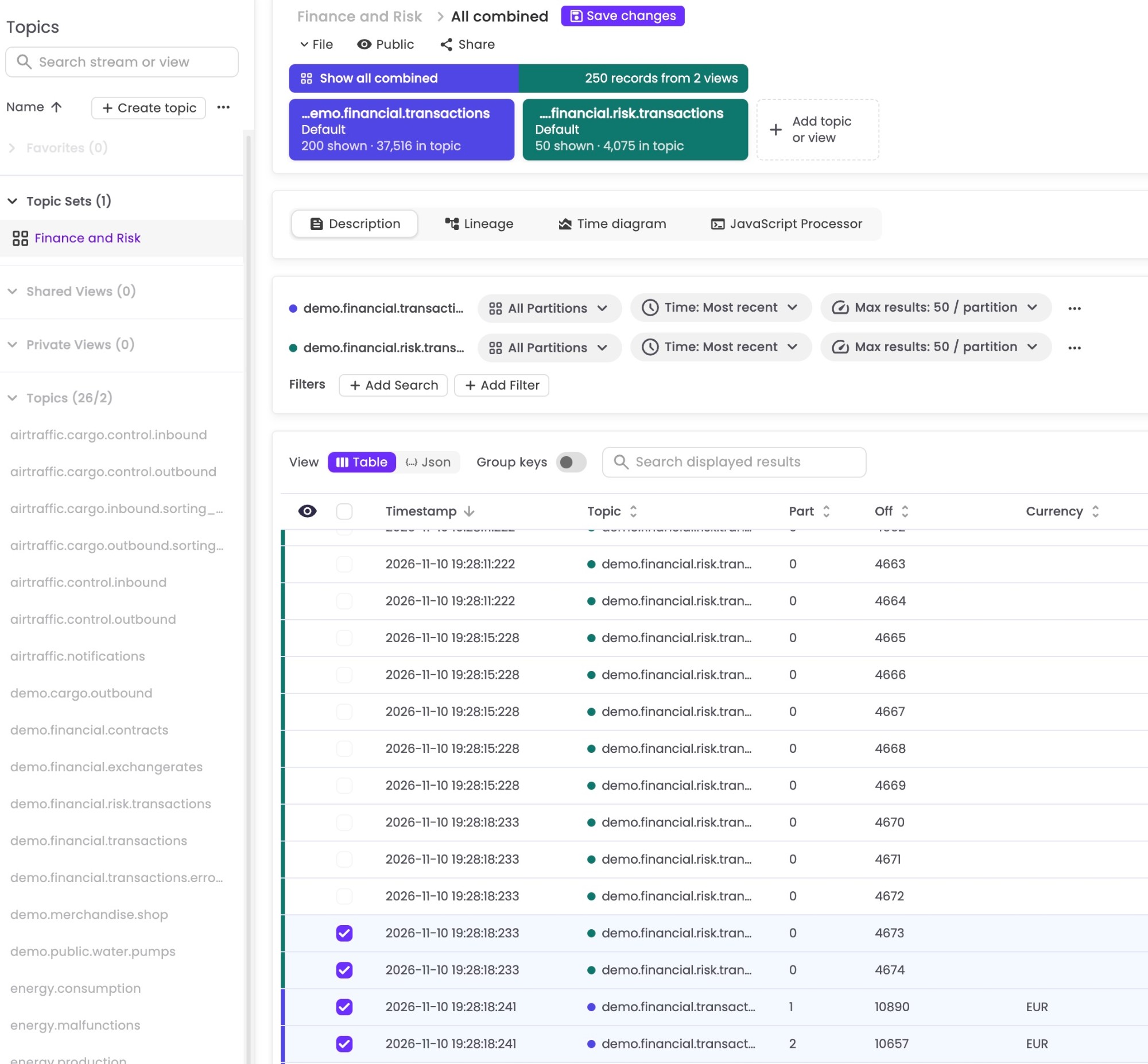
Every entry of a set is a view: a topic together with its own display settings (partitions, offset or time, maximum number of results), filters, codecs and JavaScript Processor. Each view has its own color.
You can add a topic with its default view or one of its saved views. The same topic can be part of a set more than once, for example with two different filters.
A set contains its own copy of each view. Changes you make to a view inside a set do not change the saved view it was created from.
All combined
All combined shows the records of all views of the set in one list. Each view is read with its own settings and filters. The filters and the JavaScript Processor of the combined view are then applied on top of the records of every view, independent of the topic they come from.
In other words, the combined view behaves like an additional view whose input is the output of all other views.
Switching between topic views in sets
While you switch between the views of a set, the changes you made to each view (offsets, partitions, filters, codecs) are kept. They are only stored permanently when you save the set.
Working with topic sets
Create a set
- Open the Explorer and select a topic or view.
- In the row below the header, click Add topic or view.
- Pick a topic or one of its views. Use the search field to narrow down the list.
The topic view you started with and the one you added now form a set. Repeat the steps to add more views. A set can contain up to 8 views.
You can also start a set via File → Add topic or view (create set).
Switch between views
The row below the header shows one chip per view with the topic name, the view name and the number of records currently shown.
- Click a chip to show only the records of that view. All settings you change now apply to this view.
- Click All combined to show the records of all views together.
- To remove a view from the set, hover over its chip and click ×.
Click Expand topic set below the header to show the views as larger tiles with more details, and Minimize topic set to return to the compact row. Kadeck remembers your choice.
Tell records apart
When a set is open, the record list shows:
- a Topic column next to the partition and offset columns, and
- a colored bar at the start of each row in the color of the view the record belongs to.
In the combined view, records are sorted by timestamp by default, so you can read them in the order in which they were produced across topics. You can sort by any other column, including Topic.
Set offsets and partitions per topic
In the combined view, the Display settings are shown once per topic. For every topic you can set:
- the partitions to read from,
- the starting point: most recent records, a time window, or an offset,
- the maximum number of results per partition.
This lets you, for example, read one topic from a specific offset and another one from the last hour.
When a single view is selected, the regular display settings apply to that view only.
Filter the combined view
Filters and searches you add while All combined is selected apply to the records of all views:
- Add Search searches keys or values across all topics.
- Add Filter adds an attribute filter. It is evaluated for every record: records without the attribute — for example from a topic with a different schema — do not match an equality or comparison condition.
- The JavaScript Processor of the combined view runs for the records of every view, after the filters and the processor of the view itself.
Filters that belong to a single view stay active in the combined view. To change them, select the view first.
Live mode
Live consumes new records from all views of the set at the same time. Fetch (or Stop fetching) returns to the regular mode.
Save, share and delete
- Click Save changes or File → Save set, enter a name and choose the visibility. A saved set stores all its views, their settings and offsets, and the filters of the combined view.
- Saved sets are listed in the Topic Sets folder of the topic list in the Explorer.
- Every saved set has its own link. For public sets, use Share to copy it.
- File → Save set as copy stores the current state under a new name.
- File → Delete set deletes the set. The topics and views it refers to are not deleted.
Unlike a regular view, a saved set remembers the offsets its topics are read from.
Record counts
The chips and tiles show how many records of a view are currently shown in the record list. The expanded tiles additionally show the number of records in the topic. The two numbers are independent: depending on the display settings, a view may only have scanned a part of its topic.
The status bar below the record list shows how many records are shown in total and how many were scanned.
Limitations of the combined view
The following actions belong to exactly one topic and are not available while All combined is selected. Select a single view to use them:
- producing records,
- deleting records,
- changing codecs,
- the Lineage tab.
Permissions
- Data access: a user needs
TopicAccessReadfor every topic of a set. Topics the user is not allowed to read, or that no longer exist, are shown as Not available and are skipped; the other views of the set still work. - Visibility: a set is either Public (visible to all users) or Private (visible only to the user who saved it). The visibility of a set does not grant access to the data of its topics.
- Saving: saving topic sets follows the same rules as saving views.
Audit logging
Creating, updating and deleting a topic set is recorded in the audit log.