JavaScript Processor
The JavaScript Processor lets you filter and change the records of a topic view with a few lines of JavaScript. Your code runs once for every record: it can rewrite the key, the value and the headers, leave a record out, or calculate results across records. What it returns is what the view shows.
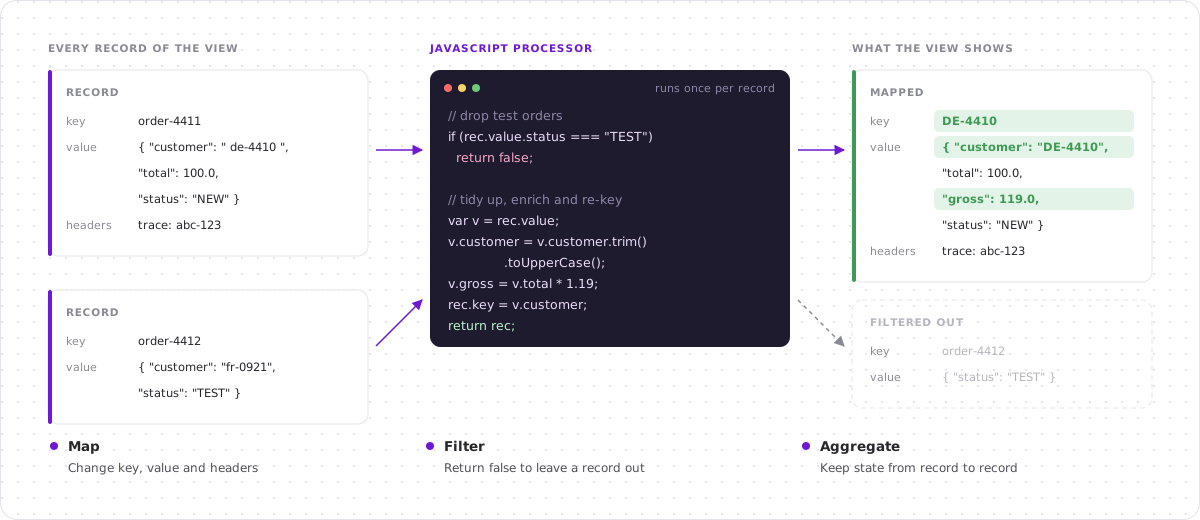
A processor is part of its view. It is saved with the view, shared with the view, and applied wherever the view is used: in the record list, in a topic set and in a Kadeck Pipe.
Use cases
Use the JavaScript Processor to:
- Transform data: add, change or remove attributes, for example to sort or filter by a value that is not in the record as such.
- Correct data: repair malformed records and write the result back to a topic with a Kadeck Pipe.
- Filter with your own logic: express conditions that go beyond attribute filters, such as comparisons between attributes or date calculations.
- Calculate across records: keep a state from record to record to count, sum up, build a moving average or find duplicates.
- Work with headers: read header values, filter by them or add new ones.
Key concepts
One run per record
The processor is called for every record the view reads, with the record in the variable rec. Your code decides what happens to the record by what it returns:
| Your code returns | Result |
|---|---|
rec | The record with your changes is shown. |
true | The record is shown as it is. |
false | The record is left out. |
Part of the view
A view has at most one processor. It is stored when you save the view, and everyone who opens the view sees the records as the processor returns them. The saved records of the topic are never changed: a processor only affects what the view shows.
To write the result to a topic, turn the view into a Kadeck Pipe.
Before filters and sorting
The processor runs after the records are decoded and before the filters of the view are applied. Attributes the processor adds can therefore be used in attribute filters, in the search and for sorting, like any other attribute. See Architecture.
Working with the JavaScript Processor
Add a processor
- Open the Explorer and select a topic or view.
- Select the JavaScript Processor tab above the record list and click Start.
- Write your code in the editor. The editor suggests the attributes of the record as you type.
- Click Apply. The records are read again and shown as your code returns them.
A dot on the JavaScript Processor tab shows that the view has a processor.
Your first processor
A new processor starts with return true;, which shows every record unchanged. Replace it, for example, with:
// leave out test orders
if (rec.value.status === "TEST") return false;

// add an attribute and show the record
rec.value.gross = rec.value.total * 1.19;
return rec;
After Apply, the record list no longer contains test orders, and every record has the new attribute gross. You can add gross as a column, sort by it, or use it in an attribute filter.
More examples and everything a processor can use are described in Writing processors.
Change or remove a processor
- Change the code and click Apply again.
- Click Reset to remove the processor from the view. The records are shown as they are again.
Save and share
A processor is saved with its view: click Save changes or choose File → Save view. To share it, share the view.
When something goes wrong
If your code has an error or fails for a record, reading stops and the error is shown below the editor. Correct the code and click Apply again. The most common causes are listed in Writing processors.
Permissions
Writing or changing a processor needs the right QuickProcessorModify for the connection and TopicAccessRead for the topic. A view that has a processor can be used by everyone who can read the topic. See Permissions.