Kadeck Pipes
A Kadeck Pipe writes the records of a topic to another topic, processed exactly the way a topic view shows them. You set up the view in the Data Explorer with the JavaScript Processor, filters and display settings you already know, check the result in the record list, and turn it into a pipe. From then on, Kadeck does the work in the background: no repository, no build pipeline, no deployment.
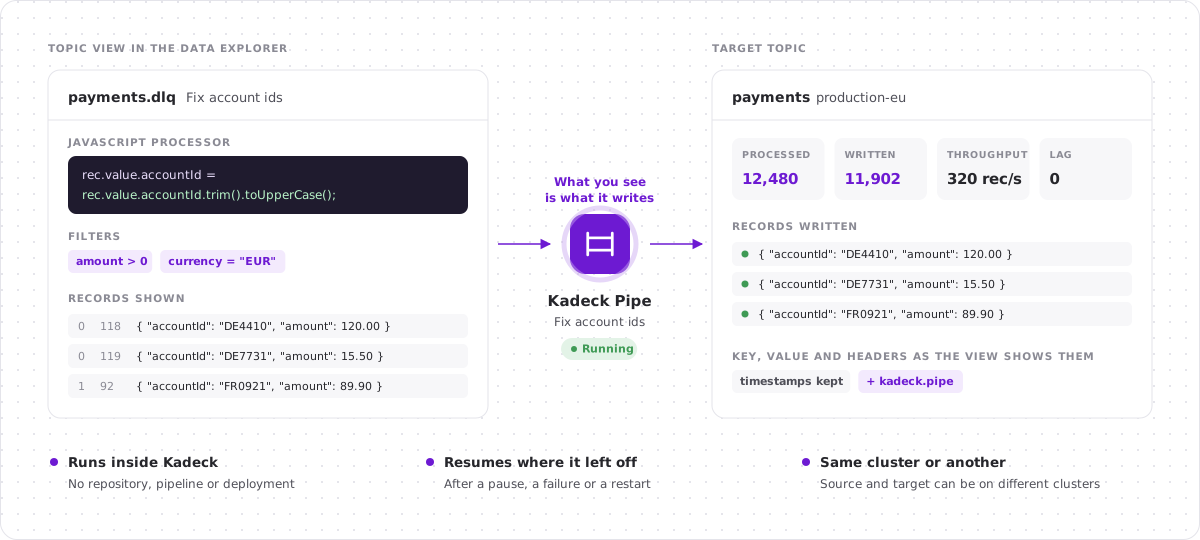
Everything a topic view does to records normally stays on your screen. A pipe makes it permanent: the corrected, reshaped or filtered records end up in a topic, on the same cluster or on another one.
Use cases
Use Kadeck Pipes to:
- Repair a dead letter queue: correct the records of a DLQ with the JavaScript Processor and write them back to the topic they belong to.
- Reshape records for an integration: rename attributes, drop fields or change the codec, and deliver the result to the topic another application reads from.
- Filter into a topic: write only the records that match a condition to a topic of their own, for example to get notified by a topic alert when one arrives.
- Copy or move data: bring the records of a topic, or a part of them, to another topic or another cluster.
The article Use cases walks through three of them step by step.
Key concepts
What you see is what the pipe writes
A pipe is created from a topic view and applies the view's:
- JavaScript Processor: the key, value and headers of each record as the processor returns them, without the records it drops,
- filters: searches in key and value and attribute filters that are switched on,
- offsets and partitions: the partitions the view reads and the offsets it starts at,
- end condition: the maximum number of results per partition, the time window or the time range.
The record list of the view is the preview of the pipe. If you only want a part of the view, for example the processor and the filters but not the limit of 50 results, you choose the parts when you create the pipe.
Source and target
A pipe reads one source topic and writes to one target topic. The two can be on different clusters.
The pipe writes the key, the value and the headers of a record as the view shows them. If the JavaScript Processor changes one of them, for example with rec.key = "New Key", the changed one is written. What the view leaves alone is written as it was read. The timestamp of the record is always kept.
Run once or keep running
- Run once writes what the view shows now and then completes. The pipe ends at the end condition of the view or at the end of the topic as it was when the pipe started.
- Keep running goes on with every record that arrives, until you stop the pipe.
States
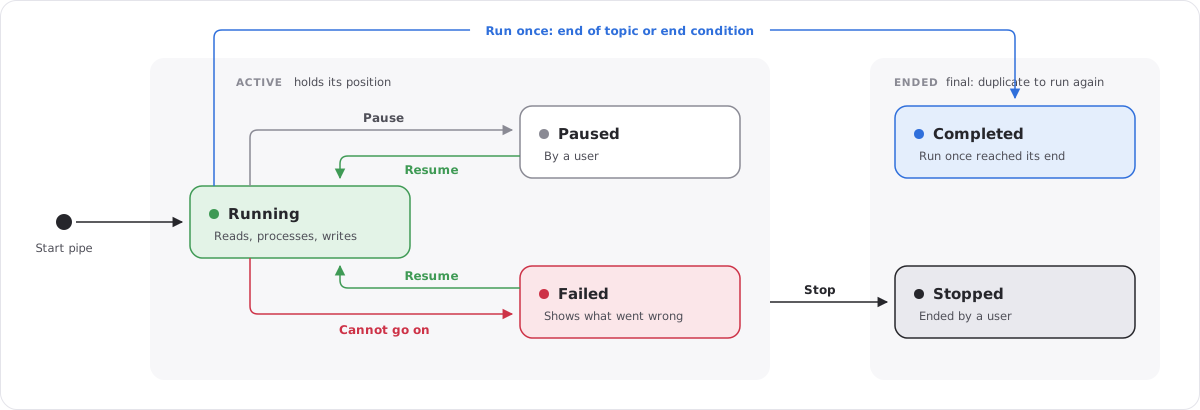
| State | Meaning |
|---|---|
| Running | The pipe reads, processes and writes. |
| Paused | A user paused the pipe. It keeps its position and goes on from there when it is resumed. |
| Failed | The pipe cannot go on, for example because the target topic no longer exists. It keeps its position and can be resumed once the cause is fixed. |
| Completed | A pipe that runs once reached its end. |
| Stopped | A user ended the pipe. |
Important: A pipe cannot be changed, and a stopped or completed pipe cannot be started again. To change a pipe or to run it once more, duplicate it: the dialog opens filled in with the settings of the pipe, and you start a new one.
The pipe view
Every pipe keeps the topic view it was created from. This pipe view is listed in the Pipes folder of the Explorer and shows the records of the source topic the way the pipe processes them. While the pipe is running, paused or failed, the view is read-only. Once the pipe has ended, you can change the view and convert it again, or save it as a regular topic view.
Working with Kadeck Pipes
Create a pipe
- Open the Explorer and select a topic or view.
- Set up the view: add the JavaScript Processor, filters and display settings until the record list shows what you want to write.
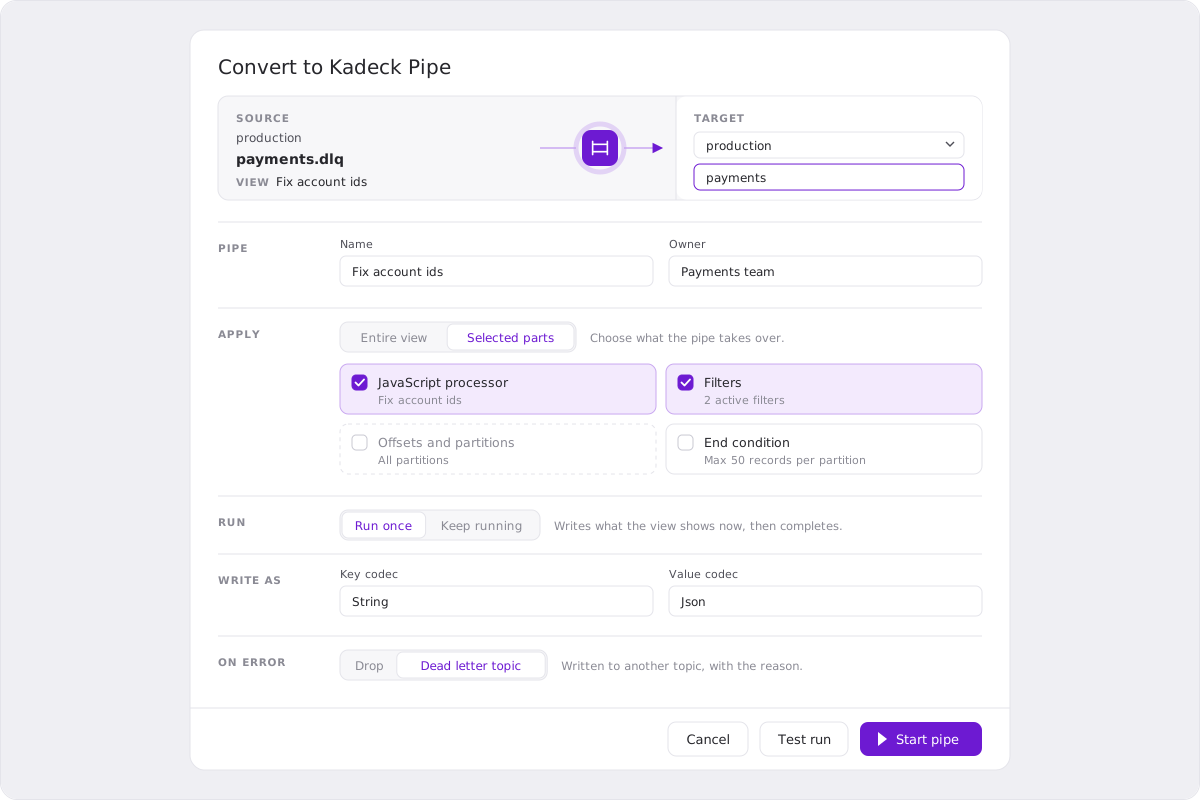
- Click Pipe in the toolbar of the view, next to Produce, or choose File → Create Pipe from this view. The Convert to Kadeck Pipe dialog opens. You do not need to save the view first: the pipe gets the view as it is shown.
- Choose the target: the cluster and the topic to write to.
- Check the remaining settings. The most important ones:
- Apply: the Entire view, or Selected parts of it.
- Run: Run once or Keep running.
- Write as: the codecs for key and value. They are filled in with the codecs of the view.
- On error: Drop records that fail, or write them to a Dead letter topic.
- Click Test run to check the pipe with one record, then Start pipe.
All settings are described in Configuration, guarantees and permissions.
Test before you start
Test run reads one record from the source topic and takes it through the pipe: decoding, the processing of the view, and encoding for the target. Nothing is written. The result shows every step with its outcome and the record the pipe would write, or the step that failed and why.
Monitor pipes
The Pipes page in the navigation lists the pipes of all clusters you have access to, with their state, source, target, mode and figures. Click a pipe to open its details:
- Processed, Written, Filtered, Dropped and Dead-lettered records,
- Throughput in records per second and Lag, the number of records the pipe still has to read,
- the position of the pipe in every partition,
- the settings the pipe was created with,
- for a failed pipe: what went wrong.
Pause, resume, stop and delete
On the Pipes page and in the details of a pipe you can:
- Pause a running pipe and Resume it later. It goes on where it left off.
- Resume a failed pipe after you fixed the cause.
- Stop a pipe for good.
- Duplicate a pipe into a new one.
- Delete a pipe. A pipe that is still running is stopped first.
Look at the records
- Source: open the pipe view from the Pipes folder of the Explorer, or click Open pipe view in the details of a pipe.
- Target: click Target records in the pipe view to open the target topic in the Explorer, on its cluster.
See pipes in the data flow
Pipes are part of the picture wherever Kadeck draws a data flow:
- The Flow visualizer tab of a pipe view shows the source topic, the pipe as a Kadeck Pipe node with its state, and the target topic, each with the name of its cluster.
- The Pipes tab of a topic in the Catalog shows all pipes that read from or write to the topic.
Availability
- Kadeck Pipes work with Apache Kafka. Amazon Kinesis streams cannot be used as source or target.
- Kadeck Platform Free includes one active pipe at a time. A pipe is active while it is running, paused or failed.
- Alerts for pipes are part of the paid editions.
- Kadeck Desktop runs pipes on your computer and can push them to Kadeck Platform via Kadeck Platform Link: see Kadeck Pipes in Kadeck Desktop.
Permissions
A user needs TopicAccessRead for the source topic and TopicAccessWrite for the target topic to create and manage a pipe. See Configuration, guarantees and permissions for the details.
Audit logging
Creating, testing, pausing, resuming, stopping, duplicating and deleting a pipe is recorded in the audit log, as well as a pipe that fails or completes.
Public API
Pipes can be created, controlled and monitored with the Public API.