Getting Started
This guide takes you from the first start to the records of your first topic. It takes about ten minutes and applies to Kadeck Platform and Kadeck Desktop; where the two differ, the step says so.
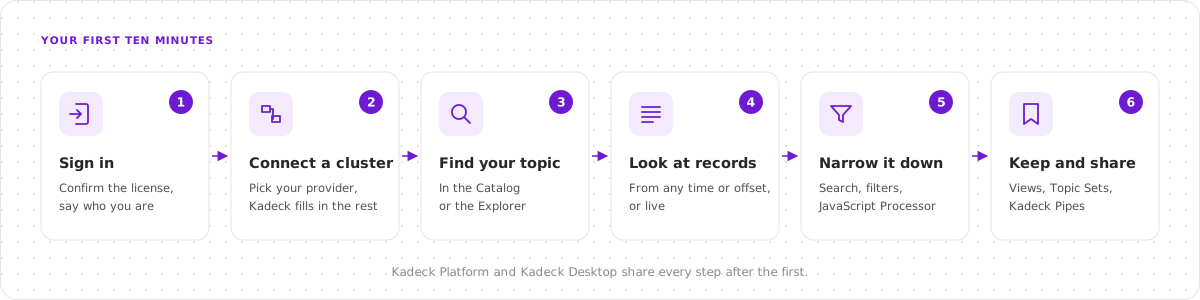
Kadeck Platform or Kadeck Desktop
| Kadeck Platform | Kadeck Desktop | |
|---|---|---|
| Made for | Teams and organizations | One person |
| Runs | On a server, used in the browser | As an application on your computer |
| Connections | Set up once by an administrator, shared by rights | Your own, on your computer |
| Users and rights | Users, groups, roles, data protection, audit log | None: it is your computer |
| To try things out | Any cluster you connect | Also a local Apache Kafka cluster, started from Kadeck |
Everything from Connect a cluster on works the same way in both.
Sign in
Kadeck Platform: open the address of your Kadeck Platform in the browser and sign in with the account your administrator gave you. If you are the one installing it, start with the deployment guide.
Kadeck Desktop: start the application.
On the first start of a free edition, Kadeck asks for two things:
- License agreement: scroll to the end of the agreement and click Confirm Agreement.
- About you: enter your name, email, company and role, then click Start now.
You land on the Connections page.
Connect a cluster
A connection is one Apache Kafka cluster, together with the services that belong to it: Schema Registry, Kafka Connect and ksqlDB. Kadeck does not copy your data. It reads and writes where the data lives.
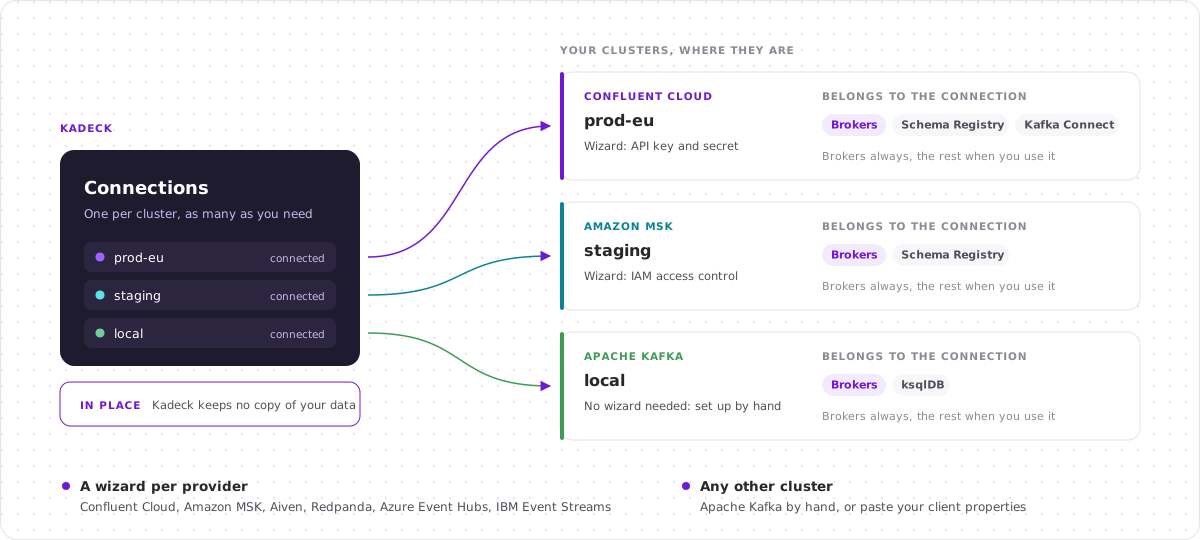
On Kadeck Platform, connections are created by administrators. If a connection is already listed on the Connections page, continue with Find your topic.
-
On the Connections page, click Add Connection.
-
Pick where your cluster lives. Kadeck asks only for what that provider hands out and fills in the rest:
Provider What you enter Confluent Cloud Bootstrap servers, API key and secret; optionally the Schema Registry URL and its API key and secret Amazon MSK Bootstrap servers; IAM access control, or the username and password for SASL/SCRAM Aiven Service URI, user and password; optionally the CA certificate ( ca.pem)Redpanda Bootstrap servers, user and password Azure Event Hubs Namespace and connection string IBM Event Streams Bootstrap servers and API key Apache Kafka Nothing yet: you set up the connection by hand in the next step Client properties A configuration as you would put it in a .propertiesfile -
Click Continue. The connection opens with everything filled in. Give it a Name you will recognize, for example
prod-eu, and pick a Color. -
Click Test connection.
-
Click Create.
The connection appears as a card on the Connections page. If it is not connected yet, click Connect on its card.
Good to know:
- The tabs Schema Registry, Kafka Connect, ksqlDB and JMX of the connection are optional. You can add them later via the menu of the card.
- To change your choice of provider, click Change at the top of the dialog. What you entered stays.
- Amazon Kinesis is available as well: click Amazon Kinesis instead in step 2.
- Kadeck Desktop only: if you have no cluster at hand, start the Local Apache Kafka Cluster from its card on the Connections page.
Find your topic
There are two ways to a topic:
- The Catalog lists the topics of all your connections with their owner, labels and domain. Use it when you know what you are looking for, but not where it is. Click a topic to see its details, and open its records from there.
- The Explorer lists the topics of the connection you are working on, next to your favorites, views, topic sets and pipes. Use it when you want to look at records.
To create a topic, click Create topic in the Explorer or the Catalog. Enter a name, set the partitions and replicas, and click Create topic. Cleanup policy, retention and common settings such as compression are one click away in the same dialog.
Look at records
Open the Explorer and click a topic. Kadeck reads its newest records and shows them as a list.
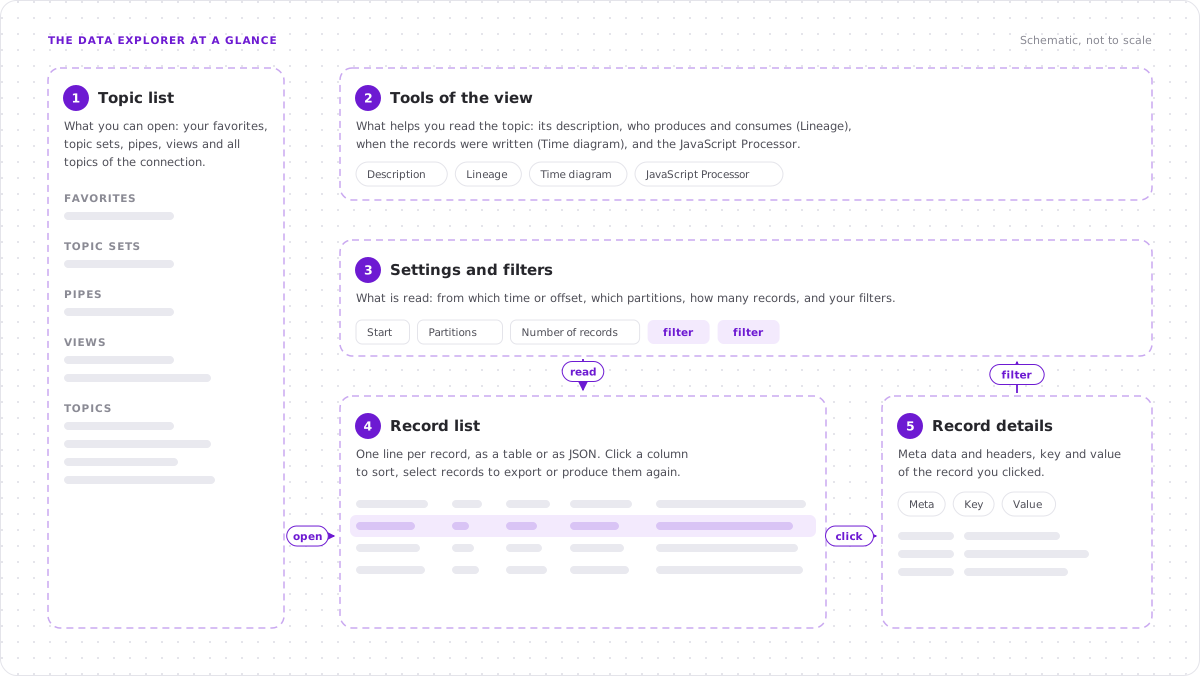
- Topic list: your favorites, topic sets, pipes, views and all topics of the connection.
- Tools of the view: Description, Lineage (who produces to the topic and who consumes from it), Time diagram (when the records shown were written) and the JavaScript Processor.
- Settings and filters: where reading starts (a point in time or an offset), which partitions are read, how many records are shown, and the filters.
- Record list: one line per record. Switch between Table and Json, and click a column header to sort.
- Record details: click a record to see its Meta data and headers, its Key and its Value.
Things to try first:
- Go back in time: set the start to a time window such as the last hour, or to an offset, and read again.
- Watch the topic live: click Consume live data. New records appear as they are written.
- Check the codec: Apache Kafka stores keys and values as bytes. Kadeck detects the format (JSON, Avro, Protobuf and others) on its own; if a value looks wrong, click Change codecs.
- Make a column: open a record, click an attribute in its Value and add it as a column to the list.
Note: Kadeck Free limits how many records a view shows.
Narrow it down
There are three ways to get from all records to the ones you need, from quick to powerful:
-
Search: type into Search displayed results to search the records that are shown.
-
Attribute filters: open a record, click an attribute and filter by its value. The filter is applied while reading, so it also finds records that are not shown yet.
-
JavaScript Processor: a small script that runs for every record. Return
falseto drop a record, or change the record and return it:// only payments above 1000, with the amount rounded
if (rec.value.amount <= 1000) return false;
rec.value.amount = Math.round(rec.value.amount);
return rec;See JavaScript Processor for everything a script can do.
Keep and share
What you have set up (start position, filters, codecs, columns, processor) is a view. A view is worth keeping when you will need it again or someone else should see the same thing.
- Save the view: open the menu of the view and click Save view. Saved views appear beneath their topic in the Explorer. On Kadeck Platform a view is private or shared with everyone who may read the topic.
- Look at several topics together: add a second topic or view to form a Topic Set, and arrange the set on a canvas with the Flow Visualizer.
- Write the result to another topic: click Pipe to turn the view into a Kadeck Pipe. The pipe writes what the view shows to a target topic, once or around the clock.
- Create or correct records: click Create new records, or select records in the list and produce them to a topic again.
- Take records with you: select records and click Export records.
Where to go next
| Area | What it is for |
|---|---|
| Consumers | See the lag of every consumer group, find slow or orphaned consumers, and reset offsets |
| Schemas | Browse and edit the subjects of your Schema Registry |
| Kafka Connect | Check, pause and restart connectors |
| ACLs and Quotas | Manage the access rules and quotas of the cluster |
| Monitoring | Follow the health of clusters, brokers and topics |
| Alerts | Get notified when a topic or the infrastructure needs attention |
| KSQL Lab | Query your streams with SQL |
| Audit | See who did what, on Kadeck Platform |
Need help?
Click the speech bubble in the header of Kadeck to send us feedback, or write to support@xeotek.com.